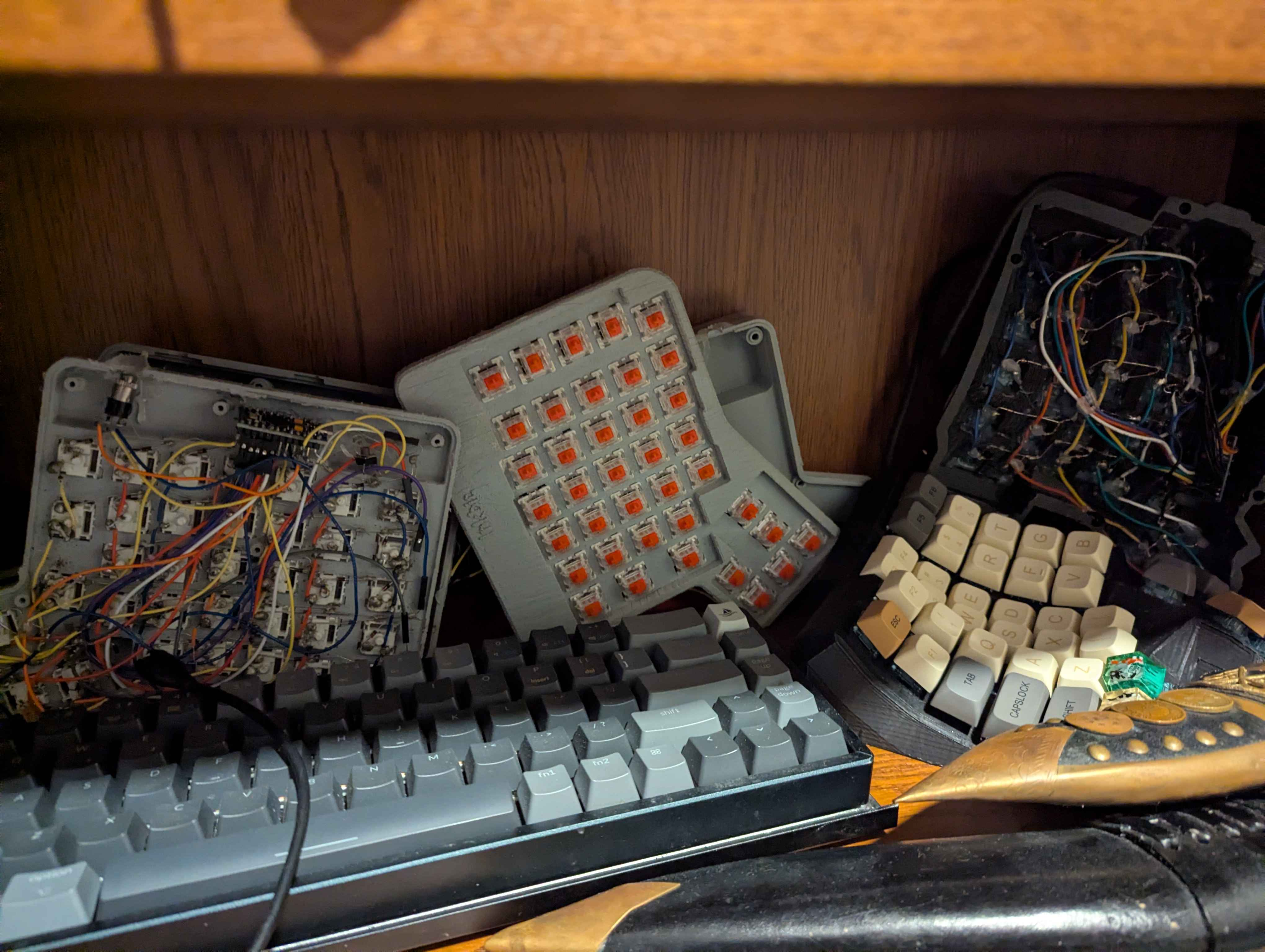
Keyboards are a pretty trendy hobby nowadays, but it shouldn't be that surprising considering how much time anyone who works on a computer spends typing. For some years now I've had a bit of a fascination with making my own keyboards - in particular, split keyboards. I'm on my third now, but it's the first I have made from a kit. I made a couple of very janky ones that eventually started breaking, but I still have their skeletons.
 |
|---|
My old attempts
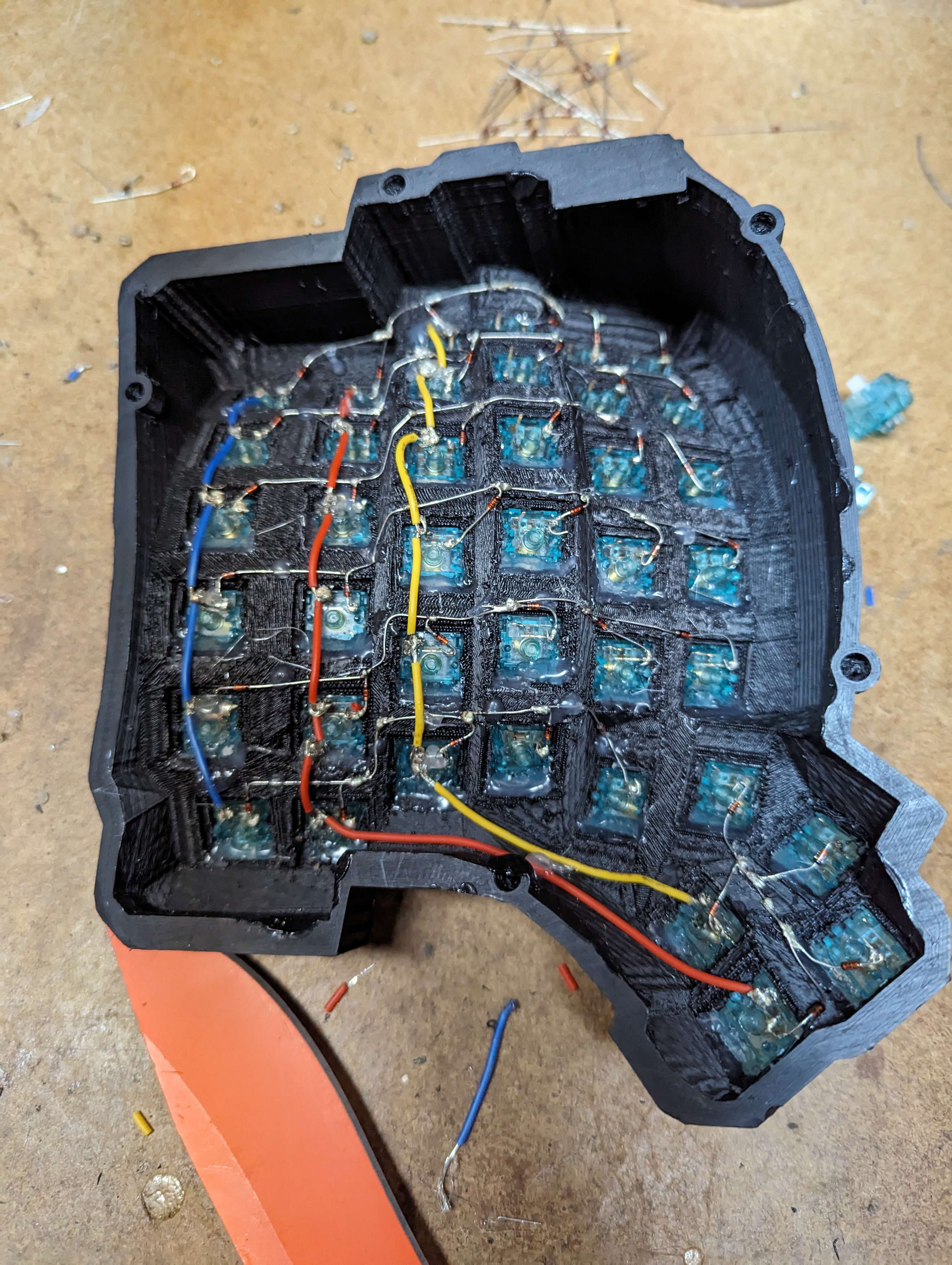
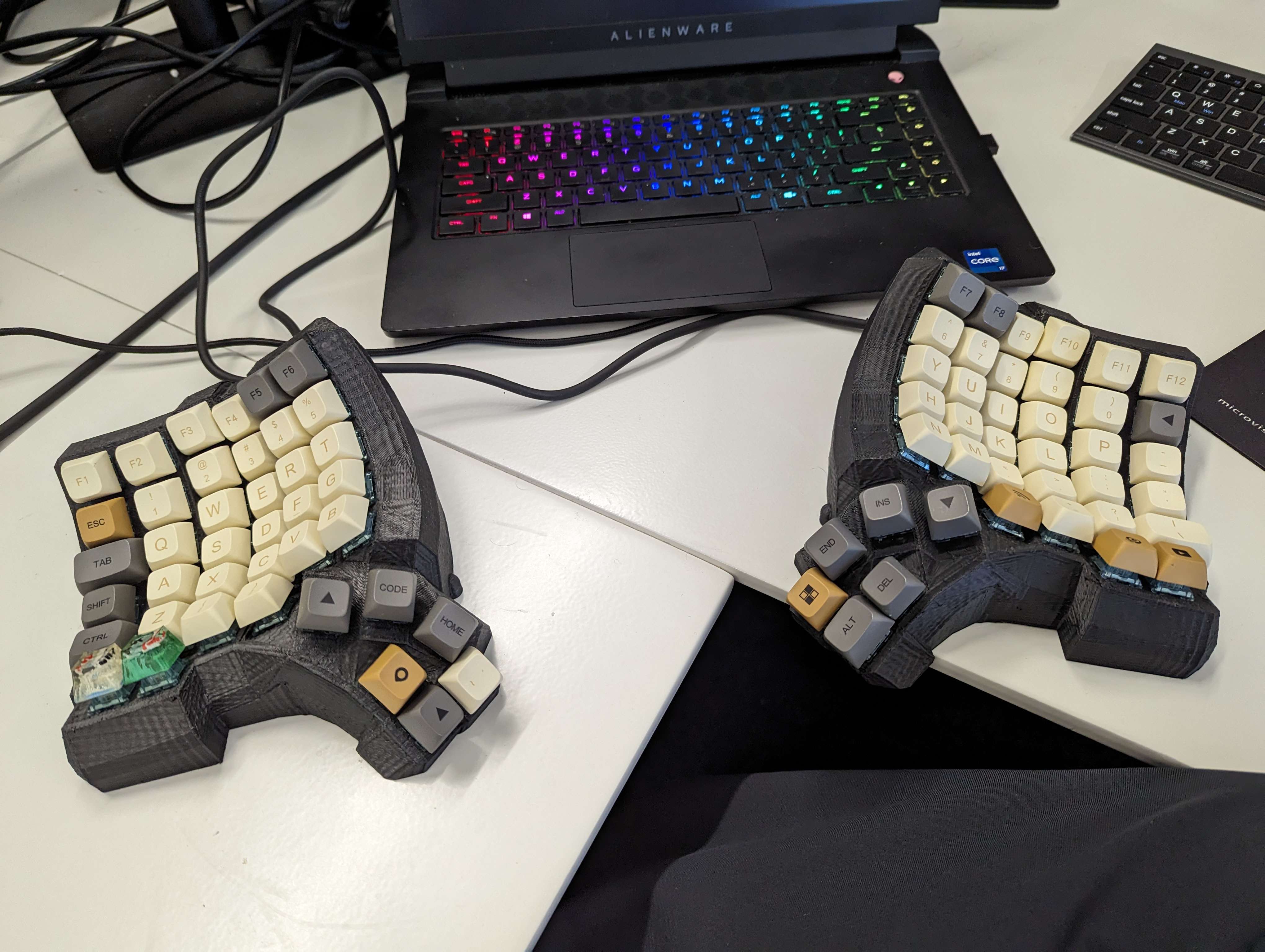
I used the curved one for a while at work until it gave out. These were pretty makeshift, and honestly it was pretty impressive that it worked for so long. I had handwired it together, despite my lack of experience and skill in soldering. The insides were a mess.
 |
 |
|---|
Making and using the old keyboard
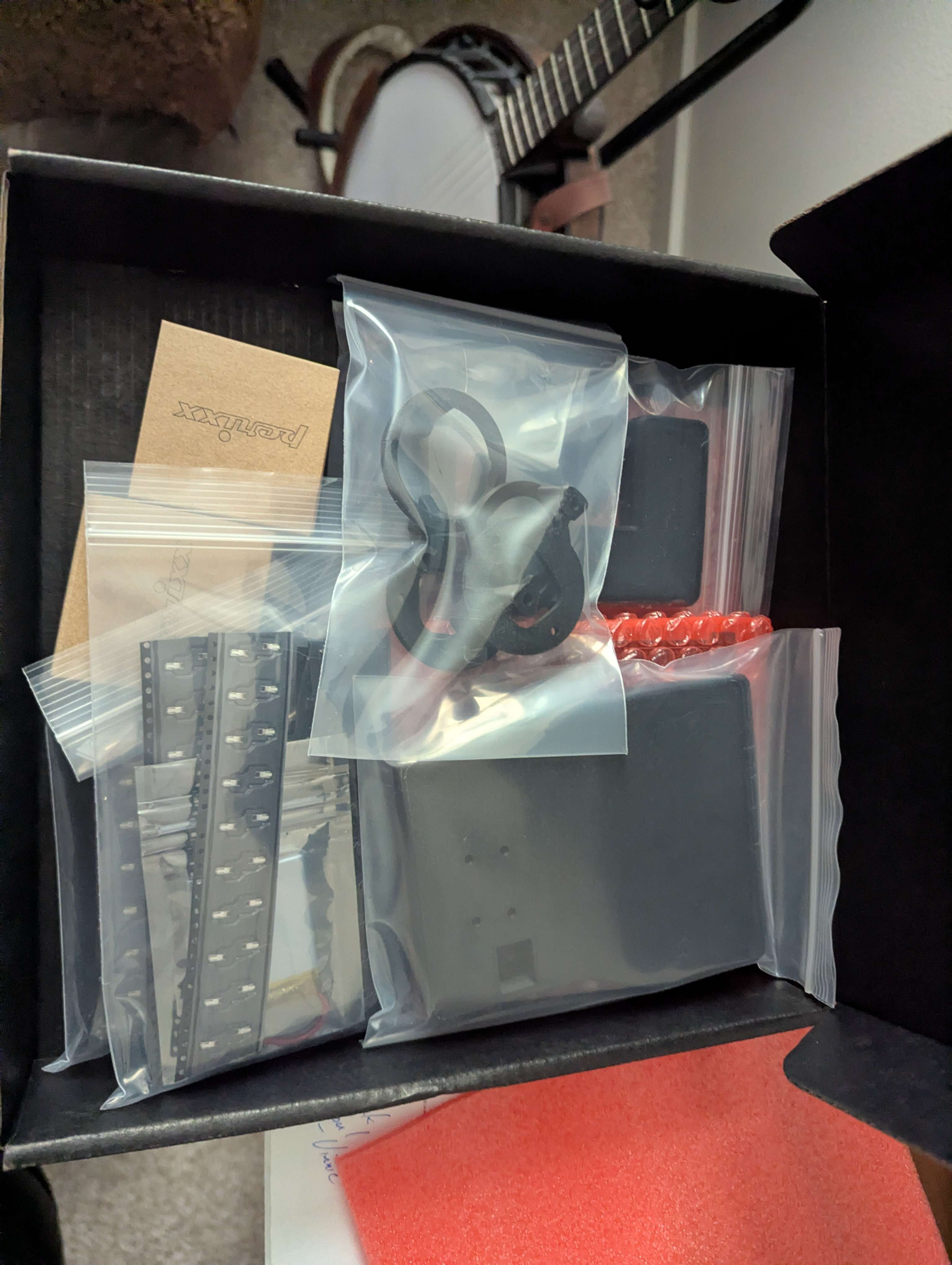
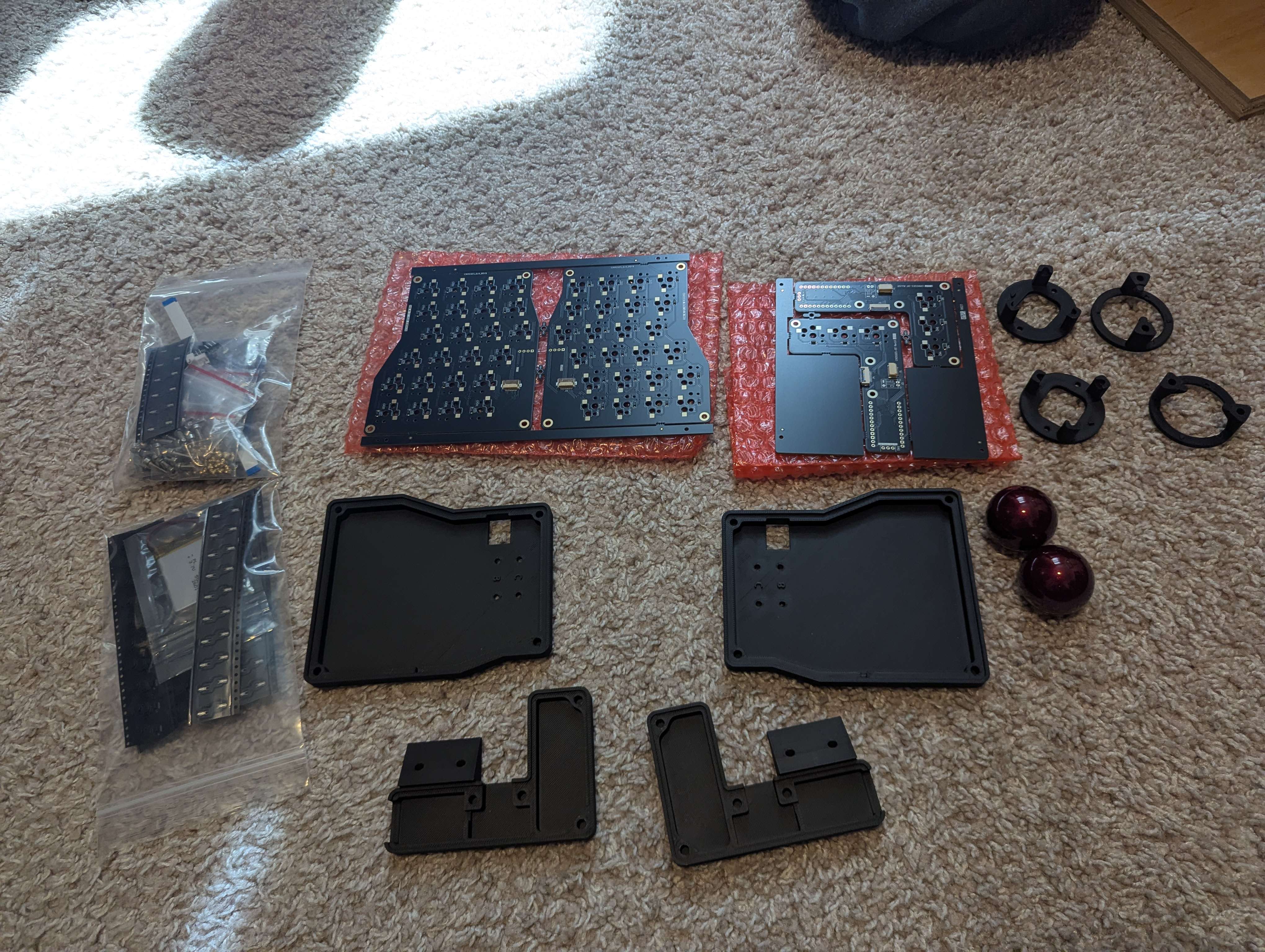
When the curved split keyboard finally broke and I could not repair it despite my best efforts, I wanted a more permanent and robust keyboard. A more professional appearance (and enclosed back) would also be nice. While handwiring and scripting the firmware for the other keyboards was pretty hard on its own, I figured designing my own cases and PCBs was a bit too much effort (and money) than I really wanted to spend - still, I wanted a nice keyboard that would take a good amount of effort to make, and would fit what I needed. I ended up going with this design. It looks good, it has track balls which seem like fun and allow my hands to never leave the keyboard, and looked like it would be interesting to build.
 |
 |
|---|
Getting the parts
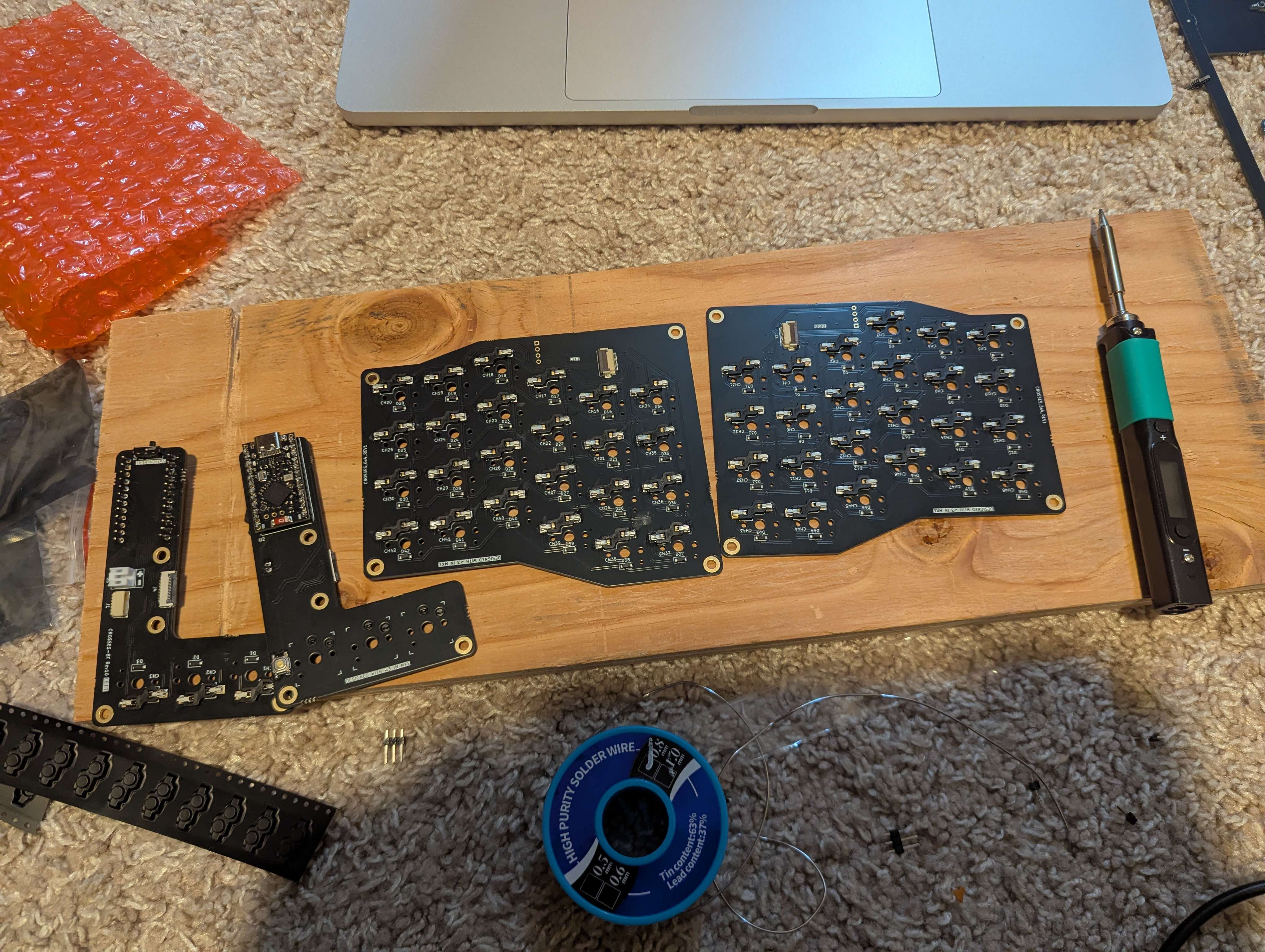
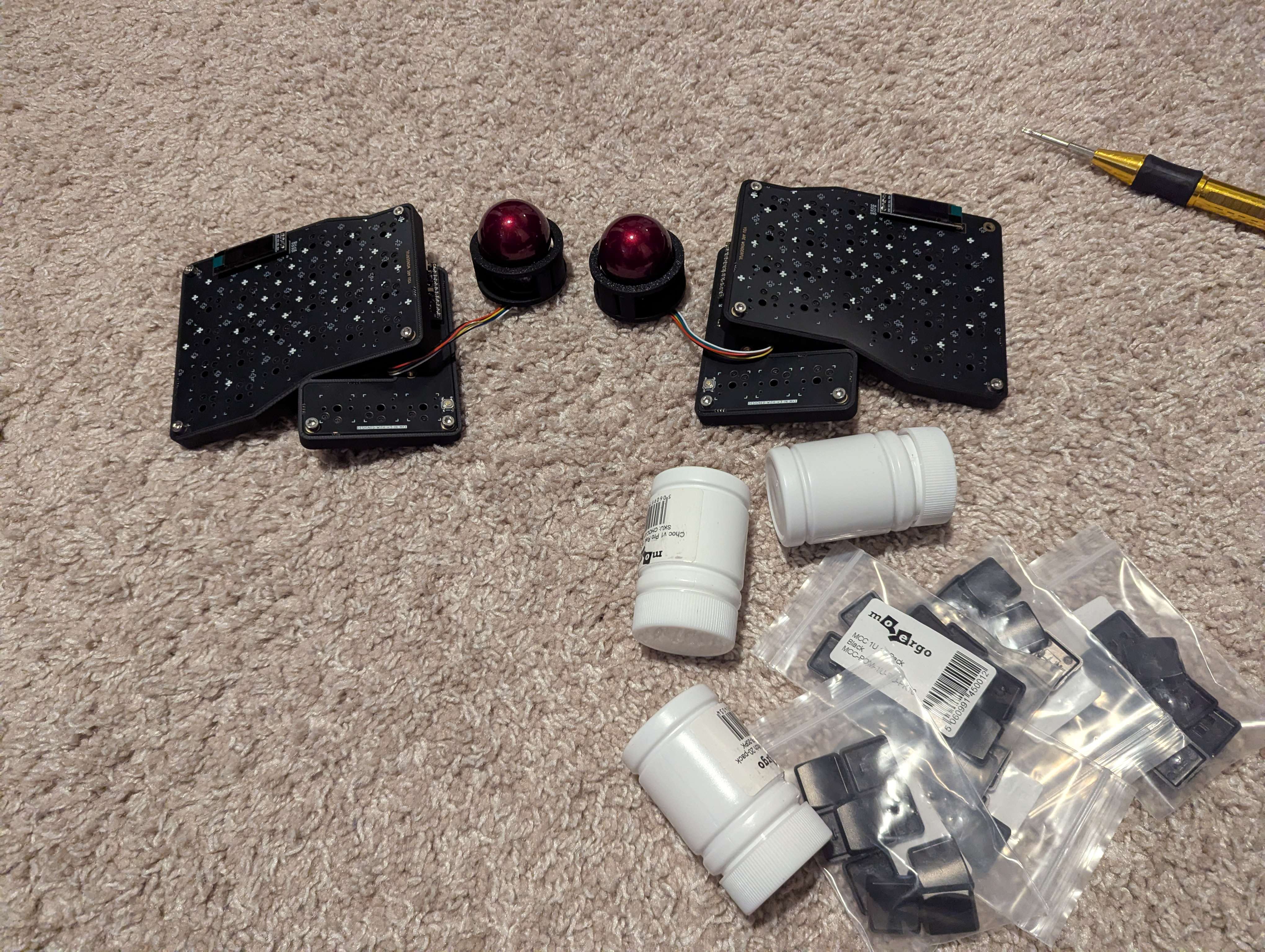
Assembly was pretty straightforward. It required a decent amount of soldering, and screws had to be placed by heating them up and pressing them into the 3D printed case. The PCBs are pretty well designed and show exactly where everything goes, but there was some useful information on the online guide one how to do everything.
 |
 |
|---|
Assembly
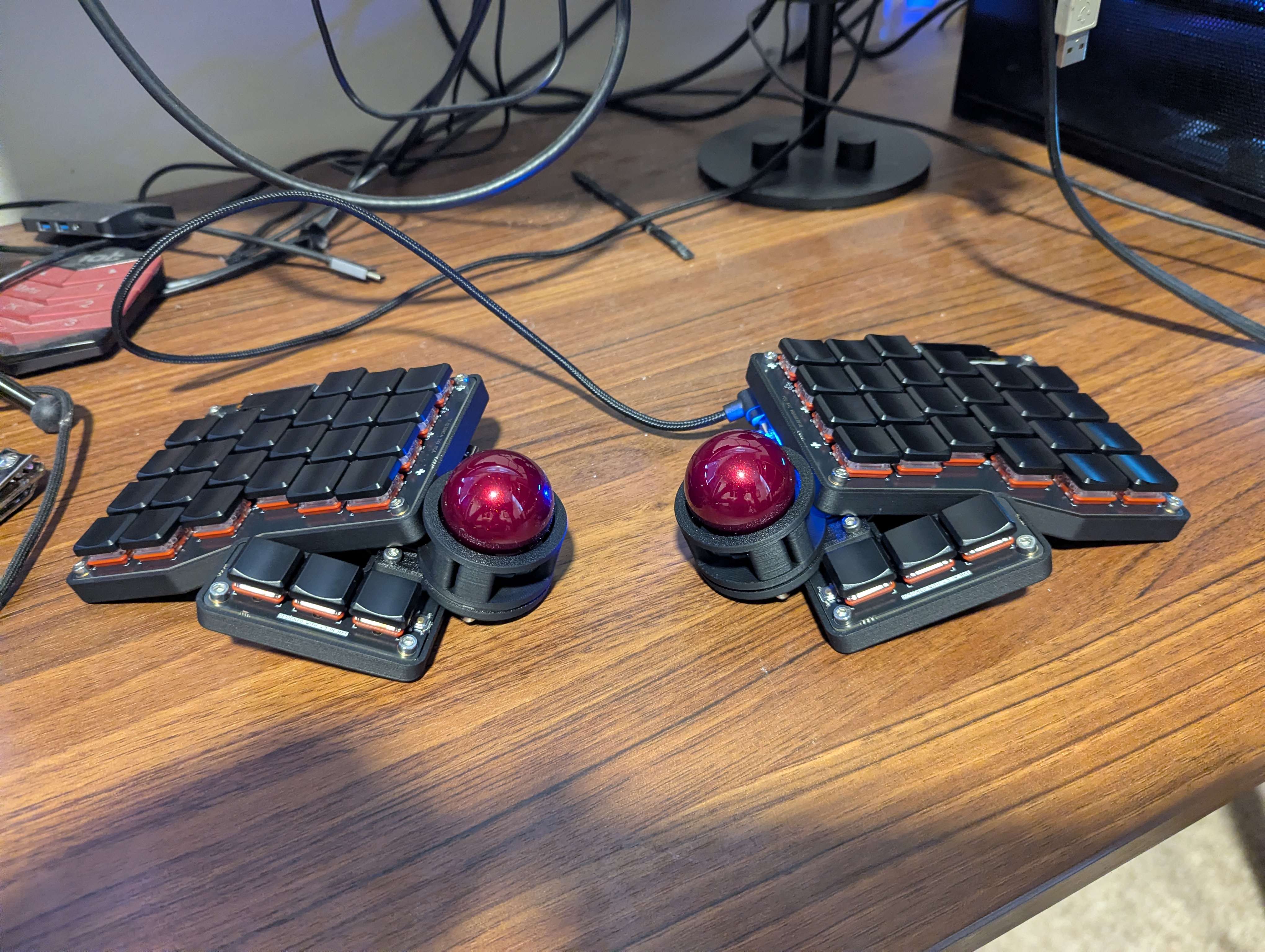
It turns out very clean in the end. I typed up this article with it; it will probably take a week or two of using it to get fully used to the controls. I found that the most important thing to learn/reteach yourself for these types of ortholinear keyboards is that your fingers generally should still to their lane/column. With the wider ones like this one (6 columns as opposed to 4 or 5, and 4 rows), you have four fingers assigned to 6 rows, meaning your pinky and index have two rows to type on, but the middle two need to stay in place. This is definitely less annoying for the fingers once you get used to it - I only really realized that the wiggling your fingers have to do one the offset keys of normal keyboards is a somewhat odd movement for the way your hand is built. The default keymap was pretty good already, but I changed a few of the thumb key maps. I generally prefer the common use keys for programming to be on those keys; things like enter/space/backspace are pressed very frequently but not often in sequence (and often between other characters), so it's good for them to be separated from normal keys.
The other aspects to get used to are the light low-profile keys and the trackballs, which are generally pretty intuitive (and fun to move around, in my opinion).
 |
|---|
Completed!